Understanding package manager and systemctl
Introduction of Packages in Linux:
Packages are essentially the specifications of an application. An application can be either a GUI application or a command line application. The metadata of that particular application is stored as a package, which is an archive file containing binary expressions or configuration files.
What is a package manager in Linux?
Now that we understand what a package is, we require a package manager to install, modify, and manage these packages. A package manager is essentially a tool designed to facilitate the installation and management of software packages in any operating system.
Different kinds of Package Managers in Linux:
Package Managers differ based on the packaging system but the same packaging system may have more than one package manager. Like APT which stands for Advanced Packaging tool which is commonly used in Ubuntu and other Debinan-based distros. DPGK stands for Debian-based package management system. YUM stands for Yellow Dog updated, modified which is used by Red Hat Enterprise Linux.
Installation of Docker using package manager in Ubuntu
Update the local repositories in Ubuntu

Allow Ubuntu to access the docker repository over HTTPS with the command
"sudo apt-get install apt-transport-https ca-certificates curl software-properties-common"
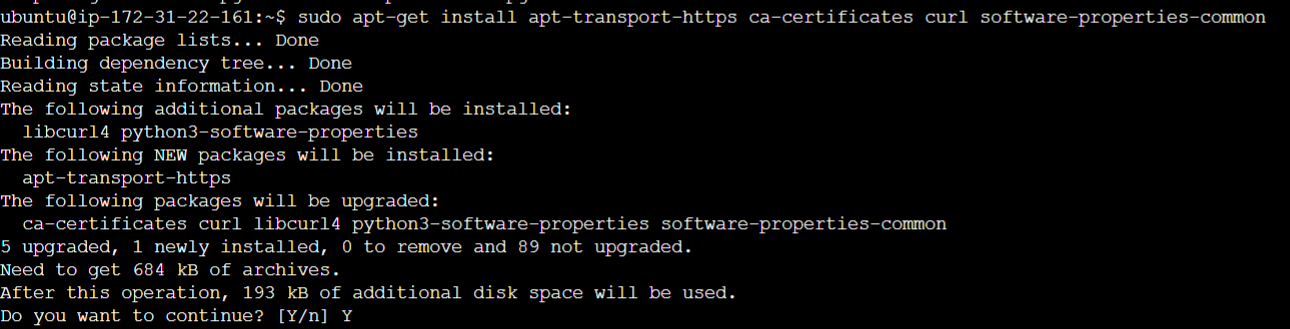
The above-mentioned command:
Gives the package manager permission to transfer files and data over https.
Allows the system to check security certificates.
Installs curl, a tool for transferring data.
Adds scripts for managing software.
Add the GPG key to ensure the authenticity of the software package with the command
"curl -fsSL https://download.docker.com/linux/ubuntu/gpg | sudo apt-key add -"

Now install the Docker repository
"sudo add-apt-repository "deb [arch=amd64] https://download.docker.com/linux/ubuntu $(lsb_release -cs) stable"

Install the Latest Docker
start by updating the repository again with sudo apt update and install the Docker with "sudo apt-get install docker-ce"

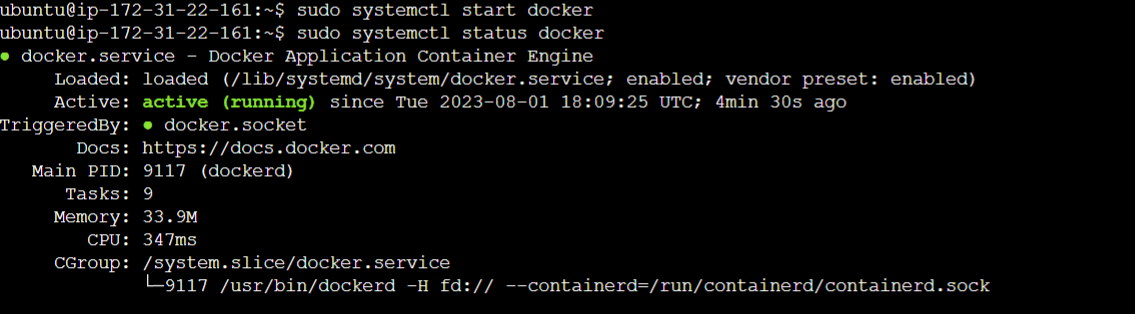
Check the status of the Docker
status can be checked with the command "sudo systemctl status docker"
Active status indicates the software package has been installed and is running, although it can be stopped with the command "sudo systemctl stop docker"

Installation of Jenkins using package manager in Ubuntu
Let us try installing Jenkins. But first, we need to install Java with the command
"sudo apt install OpenJDK-17-jre"

We can confirm by seeing the version of Java installed with "java -version". It will look like this

Adding the Jenkins repository to the APT sources on a Debian-based Linux system using
"curl -fsSL https://pkg.jenkins.io/debian-stable/jenkins.io-2023.key | sudo tee
/usr/share/keyrings/jenkins-keyring.asc > /dev/null""echo deb [signed-by=/usr/share/keyrings/jenkins-keyring.asc]
https://pkg.jenkins.io/debian-stable binary/ | sudo tee
/etc/apt/sources.list.d/jenkins.list > /dev/null"
Lastly, after updating the local repository one more time, we can install Jenkins with "sudo apt-get install Jenkins"

Check the status by using "systemctl status Jenkins"

Hope this article helps to understand basics about Linux Package managers and its used. Thank you for reading. Happy Learning 😊


